5. Delegation – Central Bank Portal

5.1 Delegation Overview

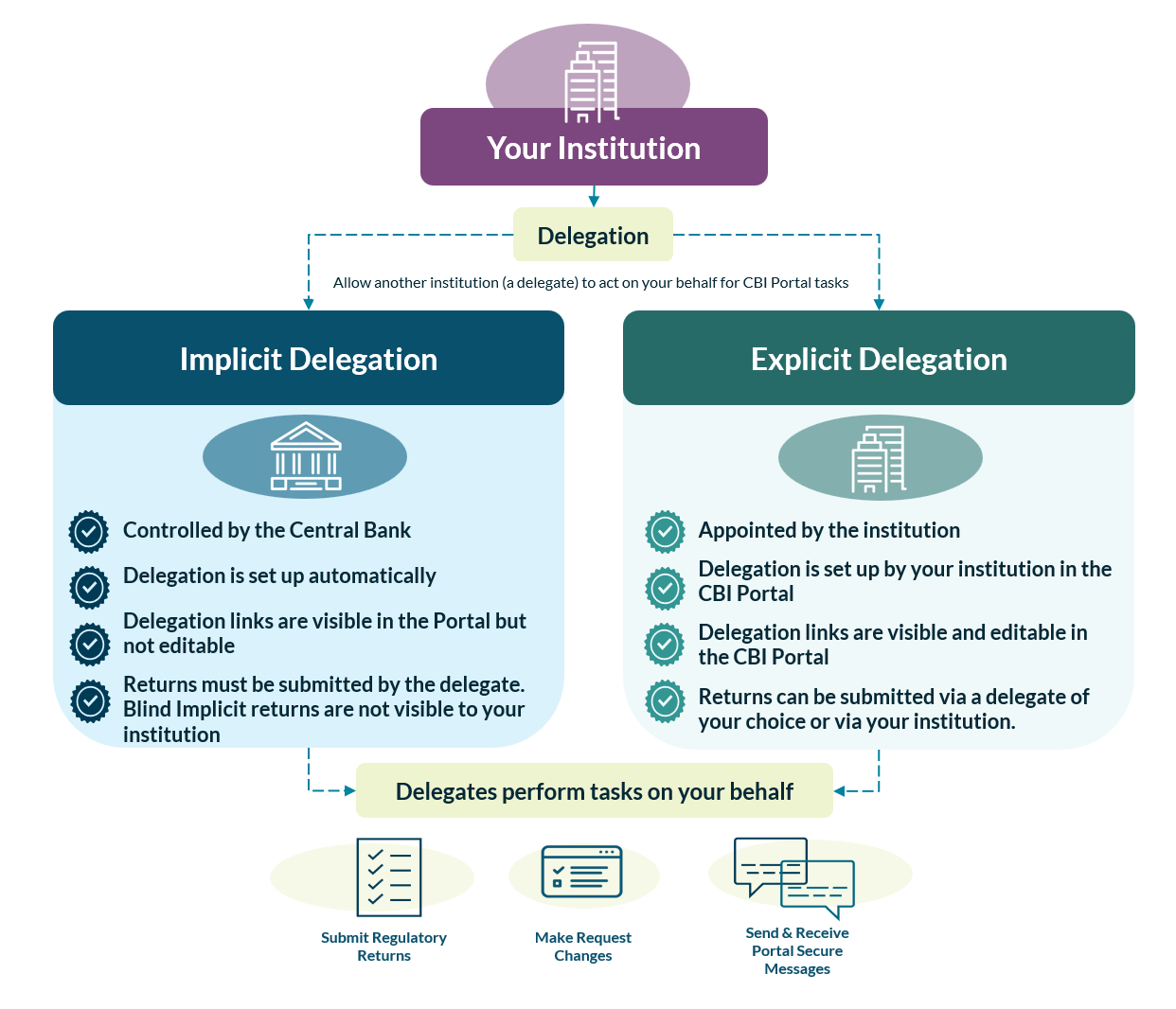
Delegation allows you to give other institutions permission to act on your behalf. They can submit documents and send messages to Central Bank of Ireland for you.

Delegates can be legal advisors, investment managers, fund service providers, filing representatives, or other authorised entities.

There are two types of delegation on the Portal.

Implicit Delegation

Implicit delegation is when the Central Bank automatically establishes delegates for certain roles. You cannot change these delegates yourself – therefore the “Actions” tab does not appear.

The Central Bank manages them based on information you have provided.

These delegates include:

  • Legal advisors
  • Investment managers
  • Fund service providers.

Delegates can access your fund’s returns automatically. You do not need to do anything. Please note that blind implicit returns are only visible to the delegated institution.

Dropdown list of institutions with an “Actions” label appearing next to explicit delegate institutions.

Implicit delegates, such as legal advisors, can also add further explicit delegations to others, For example, a legal advisor delegating return type access to a filing representative.

Explicit Delegation

Explicit delegation is when you manually add delegates to your institution. You control who they are and what they can do.

You can add multiple delegates and give them specific permissions.

Filing representatives are the main type of explicit delegate.

Once you notify us, explicit delegations can be managed by your institution’s Portal Administrator or authorised user. Delegates added explicitly can perform tasks for you, including submitting requests and communicating with the Central Bank.

To add an explicit delegate, your Portal Administrator needs to go to the “Manage Delegates” screen, select “Add Delegate”, and choose the delegate from an authorised list. Permissions are assigned accordingly.

In cases where return types have been implicitly delegated, the nominated legal advisor must add further explicit delegates.
Additional Information

A key Portal feature is the institution selector that shows all accessible institutions. You can see your own institution and those for which you are delegates. Delegated institutions are marked with a “Delegate” label. Selecting a delegated fund lets you carry out permitted actions on its behalf.

Example: ABC Fund PLC has instructed LL Legal Advisors to act as their legal advisor (implicit delegate) and ALC Fund Manager as their filing representative (explicit). Both LL Legal Advisors and ALC Fund Manager can take actions, subject to permissions, on ABC Fund PLC.

Delegate Permissions

Portal permissions are provided by the relevant Portal Administrator of the institution. Portal Administrators can assign their own permissions.

Base Permissions are Needed to Manage Delegates

Base permissions are available under “Portal Administration”. The relevant permissions must be selected for a user to manage delegates on the Portal.
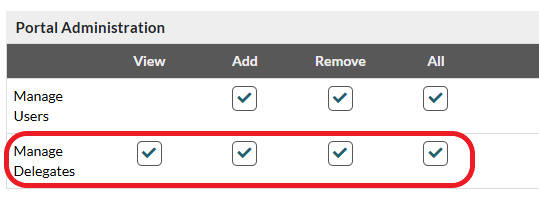
“Portal Administration” permission category with a checkbox for “Manage Delegates”.

For Portal Users Instructed to Take Delegate Actions

Portal Users instructed to take delegate actions, but who do not need to manage the overall delegation of their institution, must have at least “Perform” selected in their permissions. This must be selected via the delegate Portal profile.

Important Note

The Portal User will also need the relevant permission for the action they want to take. For example, user wants to delegate return type – the user must have permission for that return type and/or the permission for the delegated return type.

5.1 Delegation Tasks

Confirm that you have the correct permissions to manage delegates for your institution. Go to My Institution Profile > My Permissions and confirm the “Manage Delegates” resource under “Portal Administration” is selected. If it is not, contact your Portal Administrator who will be able to update your permissions.

To add a Portal Delegate

  1. Go to Portal Administration > Manage Delegates
  2. Click the “Add New Delegate” button
  3. You will see a table with available delegates for your investment fund. This list is based on information that your fund has previously provided to the Central Bank. For more information, see section 5.4.6 Why Can’t I Find the Right Institution in my Delegate List?
  4. Select the institution you wish to act as a delegate – the selected row will be highlighted. Click “Next”
  5. A page will open asking for a start date. Today’s date is automatically selected. Set the start date for the delegate
  6. A confirmation box will appear, asking you to confirm your selection. Click “Continue” to proceed
  7. Success! You will be returned to the “Manage Delegates” screen, and your newly added delegate will appear in the table. The start date of the delegation will be today’s date.

Important: At this point, the delegate is not able to see your fund’s profile or perform any actions on your fund’s behalf. As the investment fund Portal Administrator, you must: Give them access to your fund and specify which activities you wish to delegate.

  1. Go to Portal Administration > Manage Delegates
  2. Find the delegate of interest, select Actions > Manage Permissions
  3.  

  4. You will see all the permissions you can give to the delegate
  5. Tick the permissions you want to apply to the delegate
  6. Click “Save”
  7. You will return to the “Manage Delegates” screen

Note: The delegate should log out and log back in for changes to take effect.

Resources and Permissions

Institutions Details (Resource)

View permission lets the delegate see your institution’s details and all the data shown on those screens.

Messages Individual User

  • Create: Lets the delegate send messages for your institution
  • View: Lets the delegate see Portal messages where they are in the recipient list
  • All: Selects both the “Create” and “View” options.

  • Request Changes

    • View: Lets the delegate see your submitted “Request Changes”
    • Add: Lets the delegate create new “Request Changes” for your institution
    • All: Selects both “View” and “Add” options.

    Delegated ONR Returns

    Delegated permission lets the delegate submit returns for your institution.

    Note: When you give permissions to a delegate, all their Portal Users with “Perform Delegated Actions” permission will have those permissions.

  1. Go to Portal Administration > Manage Delegates
  2. Find the delegate you wish to remove and click Actions > Remove Delegation
  3. Enter an “End Date”. You can use a past or future date
  4. A box will appear asking you to confirm the action. Select “Continue”
  5. You will return to the “Manage Delegates” screen. The delegate still appears in the table, but the “End Date” is now populated with the relevant date, and the “Actions” menu no longer shows.

Note: If you use a past date, the delegate loses access immediately. If you use a future date, the delegate keeps access until that date. You can change the end date before it arrives.

Important: Ending a delegation only affects the Portal, it has no impact on the data that the Central Bank stores. For example, if you end your legal advisor’s delegation, they are still your legal advisor, they just can’t act as a delegate on the Portal anymore.

  1. Go to Portal Administration > Manage Users
  2. Find the Portal User, select Actions > Manage Permissions
  3. Find the “Manage Permissions” checkbox and tick it
  4. Click “Save”
  5. You will return to the “Manage Users” screen.

Note: Even Portal Administrators must assign themselves this permission.

You only need to register a filing representative if you want to add them as a delegate on the Portal.

Email to FilingRepDetails@centralbank.ie with the following details:

  • Filing representative firm name
  • Filing representative contact name
  • Filing representative contact email address
  • Investment fund(s) for which the filing representative will act as a delegate.

5.3 Delegation Reference and Workflows

Not all return types can be delegated. Some are set up automatically by the Central Bank (implicit delegation) or by the institution itself (explicit delegation).

Implicit Return Types (Delegation is Managed by the Central Bank)

The below mentioned return types are automatically delegated by the Central Bank and the option to change this delegation is only available through contacting the Central Bank directly. The delegate options that show depend on the information that was provided to the Bank during the authorisation process.

Return Code Return Type Name
FAR Statutory Auditors Report
FTB Depositary Report
OF3 Investment Fund Statistics Return
NAV NAV Return
NVR NAV Validation Response
AIF Alternative Investment Fund Return
A1B AnaCredit Credit Data Return Banks – Monthly
A2B AnaCredit Credit Data Return Banks – Quarterly
MM2 Money Market Fund Statistics Return
FC2 Financial Vehicle Corporations (FVC2)
SPV Special Purchase Vehicle
SFR Solvency II Annual SFCR Audit Report
PFQ Pension Fund Data Return – Quarterly (PFRQ)
PFA Pension Fund Data Return – Annual (PRFA)
PFR Pension Fund Data Return – Annual Reduced (PFRAR)
PFI Pension Fund Information Return – (PFIR)

Explicit Return Types (Delegation is Managed by the Investment Fund)

An investment fund has the choice of either making these return types themselves or instructing a filing representative to make the return on their behalf. The institution needs to update the Central Bank where a filing representative has been instructed to ensure the correct delegate information being shown.

Return Code Return Type Name
FTF Regulatory Report – Fund
FDI Financial Derivative Instruments (FDI)
FSA IF Annual Audited Financial Statements
FSI IF Financial Statements – Interim Return
KID Key Investor Information Document (KIID)
A37 Money Market Fund Return

A delegate represents an institution. When you give permissions to a delegate, all their users with “Perform Delegated Actions” permission will have those permissions.

These permissions are managed by the delegate themselves. The institution cannot manage the permissions of a delegate’s individual users.

Use the institution selector at the top to switch between institutions. Use the arrow to see all the institutions you can access.

You will see a “Delegate” label next to institutions where:

  1. You have Delegated Actions > Perform permission under your institution (the delegate)
  2. The institution has given your institution delegate action to its fund and/or sub-funds
Dropdown list of institutions with a rectangular “Delegate” label beside the institution name.

As a delegate, you can only do what the institution has given you permission to do. See section 5.2.2 How do I Manage a Delegate’s Permissions to my Institution’s Portal Profile?

To enable your institution’s Portal Users to perform the actions that the investment fund has assigned.

  1. Make sure your delegate institution is shown in the institution context selector
  2. Go to Portal Administration > Manage Users.

  3. Note: If you do not see this option, ask your Portal Administrator for access.

  4. Find the user and click Actions > Manage Permissions
  5. Find the “Delegated Actions” checkbox and tick “Perform”

  6. Note: You will only see the “Delegate” section if an institution has added you as a delegate.

  7. Click “Save”
  8. You will return to the “Manage Users” screen.

This lets the Portal User complete delegated actions for all institutions that have delegated to your institution.

To act as a delegate, first select that institution in the institution context selector. It will have the “Delegate” label shown beside the Institution Name.

Dropdown list of institutions with a rectangular “Delegate” label beside the institution name.

Follow the same instructions as if you were a direct Portal User of the fund – see section 3.2.1 How do I submit a Return? or section 4.10.1 How do I submit a Request Change?.

5.4 Delegation Troubleshooting

You may get an error message when managing delegates. These are the most common reasons:

  • You cannot add a delegate that has already been added. After you remove a delegate, you must wait until the next day to add them again
  • You cannot add a new delegate for the same task if one is already active. You must remove the existing delegate first
  • The delegation dates must align with the return type due dates. For example, if a return is due on 30 March 2024 and a delegation is active, you cannot add a new delegation for that return until after 30 March 2024. The system considers that the return is delegated already and will not allow for duplicate delegation on a single return type
  • There is an existing blank return waiting to be submitted. If the delegation is not changed prior to the system scheduling the return, any new delegations will be prevented. You must delete the blank return before adding a new delegation
  • You cannot change implicit delegations. Only the Central Bank can change implicit delegations. Contact us if you need to change them.

Make sure you have the right permissions to manage delegations. Your Portal Administrator can help with this, ask them if you need access.

You can manage multiple delegates’ connections on your institution’s Portal profile, but you can only manage filing representatives (explicit delegations) on the Portal.

When you see an error message, it explains what’s preventing the action and how to fix it.

Error message reads “There is an existing non-delegated return for return type: IF Financial Statements – Interim Return which is in the same period.” Shows “OK” and “Cancel” buttons.

Example: In the above error message, you are trying to add a new delegate for the return type (FSI). This is an implicit delegation that can be managed by Portal Users with the correct permission in place. However, an existing return instance has already been scheduled for the return while no delegation was established.

To resolve, the institution can either:

  • Use “Request Change” to delete the blank return. Then you can add the delegation and request a new return
  • Or you could also complete the return yourself under your own institution.

The error message will show the issue that needs fixing to enable the system to complete the action

You must either complete the return with the current delegate or delete the blank return.

To resolve:

  1. Use “Request Change” to delete the return instance
  2. Delete the return, add an end date to the existing delegation and create the new delegation
  3. Then request for a new return instance to be added.

When you go to the “Add New Delegate” screen (see section 5.2.1 I have the Required Permissions on the Portal. What Steps do I Need to Take to Delegate for my Institution?), the list of potential delegates comes from the institution connection data the Central Bank holds for your investment fund. You can see your institution’s connections under Institution Details > Connections.

Delegates are either:

  • Institutions that perform roles for your institution which are notified to the Central Bank as part of existing requirements. These roles include legal advisor, investment manager, fund service provider, etc.

OR

  • Institutions that carry out tasks (for example, the filing of “Country Supplements”) on your behalf but which do not hold a notifiable role (as in point 1). We call these institutions as filing representatives.

You must notify the Central Bank about all delegates so we can set them up on the Portal.

If you do not see an institution that you want to add as a delegate, it is likely that they: