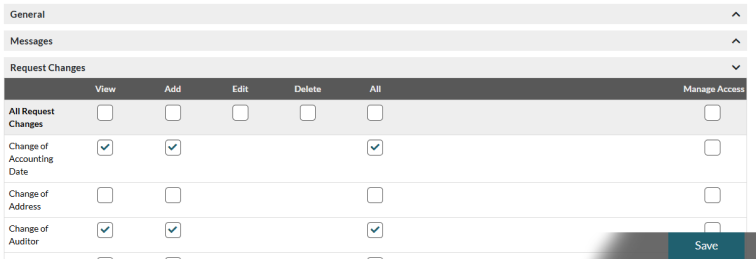
What Does the “Manage Users” Screen Allow Portal Administrator to do?
The “Manage Users” screen allows you to control user access and permissions.
- Go to Portal Administration > Manage Users. You will see a list of users for your institution with details including their role, name, person code, email address, status and last login date.
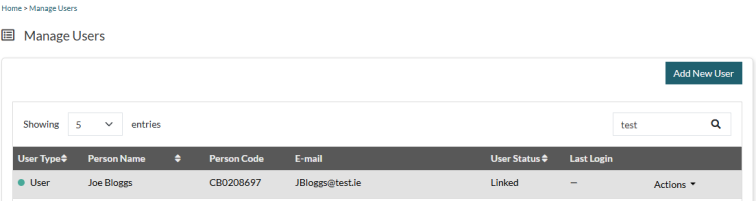
- Click “Actions” in the right-hand column for a particular user and select one of the following.
“Status Changes” – review the status changes for each user.
“Manage Permissions” – add and remove permissions for each user (see section 2.4.5).
“Remove User” – unlink a user from your institution (for example because they no longer work there).

How do Administrators on the Portal Manage a Portal User’s Permissions?
You are responsible for giving permissions to Portal Users linked to the institution you administer. This gives them access to certain functionality, such as messages and request changes.
Before you can manage a user’s permissions, they must be added to your institution (see section 2.4.2 User Lifecycle Management (Add, Remove, and Reactivate Users). You must also be either:
- A Portal Administrator (can manage all users)
OR
- A Business Administrator (can manage specific permissions).
Steps to update a user’s Portal permissions.
- Go to Portal Administration > Manage Users. You will see a list of all users linked to your institution
- Find the user you want to manage. Use the search box to find them quickly
- Click “Actions” next to the user’s name and select “Manage Permissions”
- You will see different types of permissions organised into groups. For each permission group you will also see the various permissions available for a user, such as “View”, “Add”, “Edit” or “Delete”
- Update the Portal User’s permissions as follows:
To add permissions, tick the boxes for the permissions you want to give this user
To remove permissions, untick the boxes
To add or remove all permissions in a group, tick or untick the “All” box.
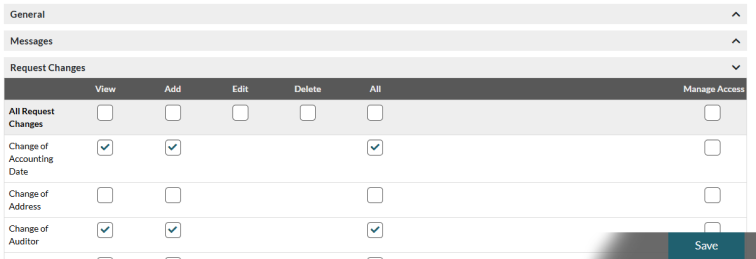
- Click “Save” when all updates are completed. A confirmation message will appear. The user must log out and back in for changes to take effect
- Click “Cancel” to exit without saving. A warning will appear. Click “OK” to confirm or “Cancel” to return.
Important Notes
How Does Portal Administrator View an Existing User’s Permissions?
If you are a Portal Administrator or Business Administrator, you can view an existing Portal User’s permissions as follows.
- Go to Portal Administration > Manage Users. You will see a list of users linked to your institution
- Find the user. Use the search box to find them quickly
- Click “Actions” next to the user’s name and select “Manage Permissions”
- You will see the user’s permissions. If you are a Business Administrator, you will only see permissions you can manage
- Click the arrows to expand or collapse permission groups. Use “Expand All” or “Collapse All” to expand or collapse everything at once.