3. Returns – Central Bank Portal

Returns are reports or data your institution must submit to Central Bank of Ireland. They help us monitor your institution’s activities and ensure compliance with regulatory requirements.

You submit returns through the Central Bank of Ireland Portal. The Portal allows you to view, edit, and submit your Returns online.

Once you log in to the Central Bank of Ireland Portal, you will see a “Returns” menu option on your institution’s home page.

Click the “Returns” tab to access returns.

Portal home page with a “Returns” tab open in the main navigation menu.


3.2 Working With Returns

To submit a return, follow these steps:

  1. Click “View/Edit Returns” to see the return types you must submit
  2. The returns available to you are shown as clickable links in a table
  3. Click the return type you want to submit
  4. See the relevant return guidance for submission details.

If you have many returns, you may need to scroll to see them all.

Table of available returns with return type names shown as hyperlinks, with columns for “Name”, “Code”, and “Description”.

An Individual Questionnaire (IQ) is a form for Fitness and Probity assessments. You submit it through the “Fitness and Probity” tab on the Portal, not through “Returns”.

To submit an IQ:

  1. Go to the “Fitness and Probity” tab on the Portal
  2. Your Portal Administrator can give you access to this tab from “Portal Administration”
  3. The person applying must be connected to your institution’s Portal account.

Ask your Portal Administrator for access if you cannot see the “Fitness and Probity” tab.

See the Fitness and Probity Individual Questionnaire guidance for more details.

You can send a message to the Central Bank about a return in two ways:

Option 1: Message About a Specific Return Type

  1. Go to the “Returns” tab on the Portal
  2. Select the return type you want to ask about
  3. Click “Create New Message”
  4. The system will populate the subject line automatically based on the return type you selected
  5. You will see which Central Bank team will receive your message
  6. The team will be selected automatically, or you can choose from available teams.

Option 2: Message About a Specific Return Instance

A return instance is a specific submission of a return (for example, your quarterly report for Q1 2025).

  1. Go to the “Returns” tab and find the return you want to ask about
  2. Open the return details screen for that specific return
  3. Click “Create New Message”
  4. The system will populate the subject line automatically based on that specific return
  5. You will see which Central Bank team will receive your message.

Your Portal Administrator can also request return-related changes (such as unlocking or deleting a return) through the “Returns” tab.

You can ask the Central Bank to unlock a return if you need to make changes to one you have already submitted.

To request to unlock a return:

  1. Ask your Portal Administrator for permission to submit request changes
  2. Go to the “Returns” tab on the Portal
  3. Find the return instance you want to unlock
  4. Click “Create Request” and select “Unlock Return” from the menu
  5. Click “Submit”.

Return instance with a dropdown menu showing options including “Unlock Return”, “Change Reporting/Submission Date”, and “Remove Return Instance”.

To request a reporting/submission date change:

  1. Ask your Portal Administrator for permission to submit request changes
  2. Go to the “Returns” tab on the Portal
  3. Find the return instance you want to change
  4. Click “Create Request” and select “Change Reporting/Submission Date” option
  5. Explain what due date change you need
  6. Click “Submit”.

You can ask the Central Bank to delete a return if it was added by mistake or is no longer needed.

To request to remove a return:

  1. Ask your Portal Administrator for permission to submit request changes
  2. Go to the “Returns” tab on the Portal
  3. Find the return instance you want to delete
  4. Click “Create Request” and select “Remove Return Instance”
  5. Click “Submit”.

You can ask the Central Bank to add a return that is not scheduled but your institution needs to submit.

To request to add a return:

  1. Ask your Portal Administrator for permission to submit request changes
  2. Go to the “Request Change” tab on the Portal
  3. Find “Add Return Type”
  4. Select the return type you want to add
  5. Click “Submit”.

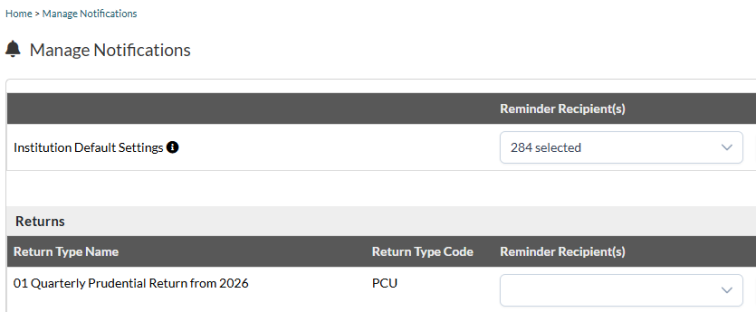
You can set up notification reminders so you do not miss return deadlines.

Setting up Notifications

  1. Go to the “Returns” tab on the Portal
  2. Click “Manage Notifications”
  3. You can choose which users receive notifications for a specific return or all returns.
  4. Select the users who should receive notifications
  5. Click “Save”.

“Manage Permissions” interface showing check boxes for “Returns Notifications”.

Once a user is assigned, they will receive notifications about due returns. They will receive notifications as Portal messages in the “Messages” tab.

I did not Receive a Notification for my Return due Date

If you did not receive a notification, here is why:

  • You do not have notification permissions – ask your Portal Administrator to set up notifications for you
  • You were not assigned as a contact – your Portal Administrator must assign you as a notification contact for the return.

Once set up, notifications will appear in your messages.

How to Assign Permissions for Notifications

Your Portal Administrator can assign notification permissions:

  1. Go to Portal Administration > Manage Permissions
  2. Find the notification permission categories
  3. Tick the boxes for the notifications you need
  4. Click “Save”.

Portal Users should ask their Portal Administrator for notification access.
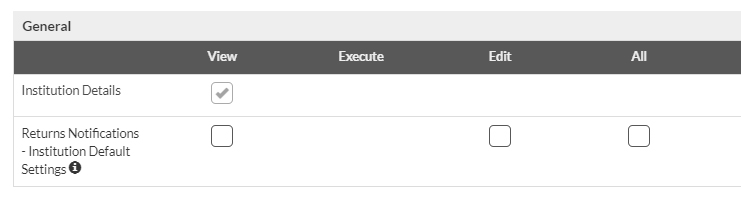
“Manage Permissions” interface showing check boxes for “Returns Notifications”.

Where can I see my Notifications?

Once you have notification permissions and are assigned as a contact, notifications will appear in Portal “Messages”.

  1. Go to Portal Menu > Messages
  2. You will see your notifications there.

3.3 Returns Reference and Resources

An ad-hoc return is one that is not scheduled regularly. You submit it when required.

For guidance on how to add an ad-hoc return, see the CBI Portal Ad Hoc Return Scheduling User Guide.

Different return permissions allow different team members to perform different tasks with returns.

Permission Type What It Allows
Administrator/Manage Access Full access – can add returns and manage all permissions.
Editor & Verifier Can edit returns and verify them before submission.
Creator, Editor, Verifier Can add, edit, and verify returns.
Verifier Can verify and approve returns for submission.
Editor Can edit return data and prepare it for submission.
Submitter Can upload and submit returns.
Viewer Can see returns but cannot make changes.
None No access to this return.

3.4 Returns Troubleshooting

If you do not see “View/Edit” on the “Returns” tab, you do not have permission.

Ask your Portal Administrator to give you permission. Your Portal Administrator can do this from Portal administration.

If you should have access to a return but do not see it, here are the most common reasons:

You do not Have Permission

Ask your Portal Administrator to give you access. If it is a group return, you also need permission for the group.

Your Institution is not Authorised

The returns you can submit depend on your institution’s authorisations. Contact the Central Bank if you think your institution should be able to submit this return.

It is not due Yet

Some returns are only scheduled at certain times of the year. If your institution is authorised, it will appear when it is due.

To submit Pre-Approved Controlled Function (PCF) applications, go to the “Fitness and Probity” tab on the Portal.

Your Portal Administrator can give you access to this tab from “Portal Administration”. The person applying must be connected to your institution’s Portal account.

Portal navigation menu with a “Fitness and Probity” tab highlighted, providing access to the different PCF roles ticked.

For questions about your PCF roles, email fitnessandprobity@centralbank.ie.

If you cannot request to unlock, amend, or delete a return, here are the most common reasons:

You do not Have Permission

Ask your Portal Administrator for permission to request return changes. Your Portal Administrator can give you this from “Portal Administration”.

The Return is not in the Correct Status

You can only request certain changes when the return is in a particular status. For example, you can only request to unlock a return if it has been locked.

There is an Outstanding Request Change

There may be an outstanding request change for this return. You will need to wait until it is completed before you can make another request.